Making and Receiving Calls
The Communication page provides a full-featured dialpad and call management interface for handling external calls with customers and clients.
Making Outbound Calls
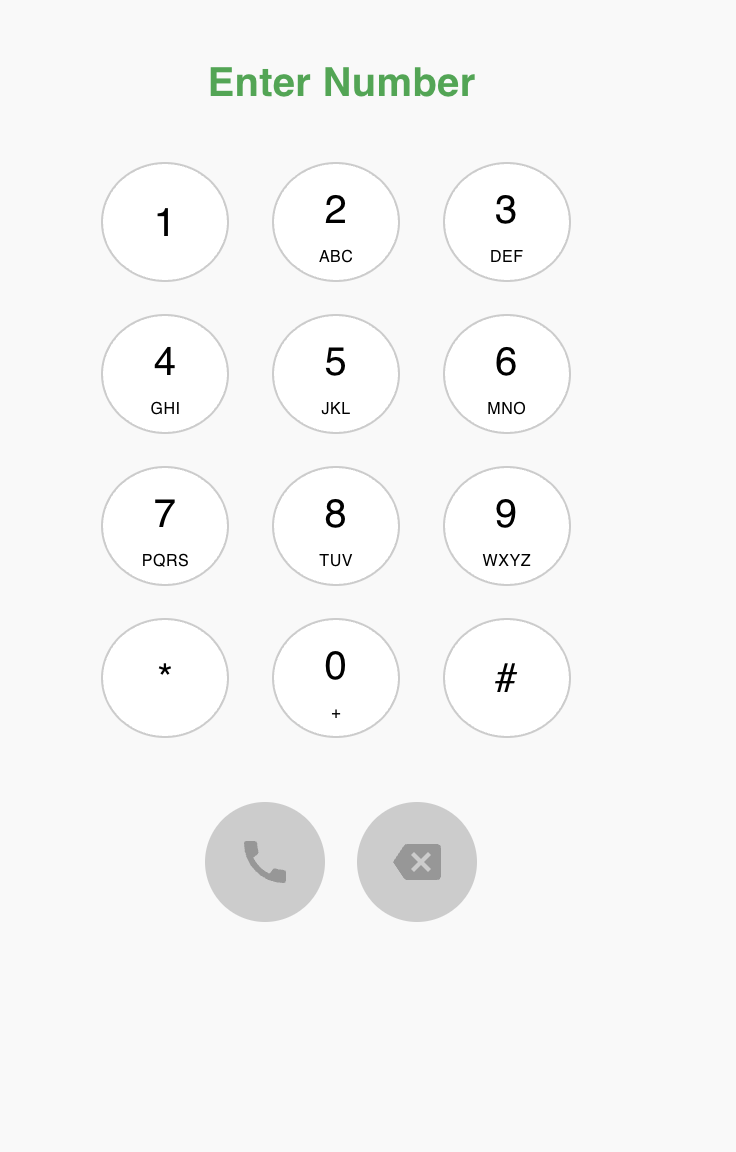
Using the Dialpad
- Navigate to the Communication page and ensure External is selected.
- Enter the phone number using the on-screen keypad or your keyboard.
- Select the From Number dropdown to choose which business number to call from (if you have multiple numbers assigned).
- Click the green Call button to initiate the call.
Calling from Contacts
- Go to the Contacts tab in the left navigation.
- Search or browse for the contact you want to call.
- Click on the contact to open their conversation thread.
- Click the Phone icon to start the call.
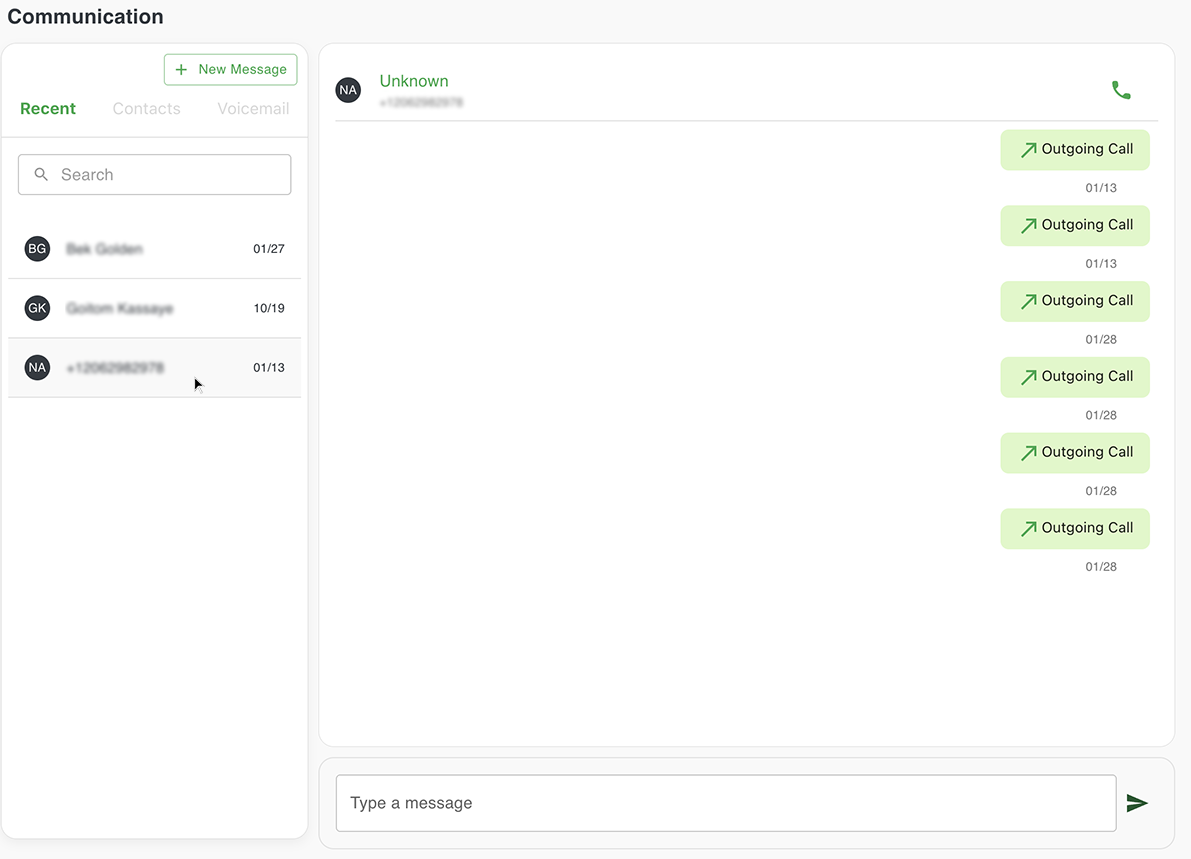
Calling from Recent
- Go to the Recent tab in the left navigation.
- Find the previous conversation with the contact.
- Click the Phone icon to redial.
Receiving Inbound Calls
When an incoming call arrives, you will see a call notification appear on your screen.
Answering a Call
- Click the green Accept button to answer the call.
- The call will connect and you can begin speaking with the caller.
Declining a Call
- Click the red Decline button to reject the call.
- The call will be routed according to your queue's overflow settings (e.g., voicemail or another agent).
Queue Assignment Required
You must be assigned to a queue to receive inbound calls. Contact your administrator if you are not receiving calls.
During a Call
While on an active call, you have access to several controls:
| Action | Description |
|---|---|
| Mute | Mute your microphone so the other party cannot hear you. |
| Hold | Place the caller on hold with music. |
| Keypad | Access the DTMF keypad for entering numbers during the call. |
| Transfer | Transfer the call to another user or queue. |
| End Call | Hang up and end the call. |
Call Transfer
To transfer a call to another team member:
- Click the Transfer button during an active call.
- Search for the user or queue you want to transfer to.
- Choose Blind Transfer to transfer immediately, or Warm Transfer to speak with the recipient first.
Call History
All calls are automatically logged in the Recent tab, displaying:
- Contact name or phone number
- Call direction (inbound/outbound)
- Call duration
- Date and time
- Call outcome (answered, missed, voicemail)
Voicemails
When callers leave voicemails:
- Navigate to the Voicemails tab in the left navigation.
- Click on a voicemail to play the recording.
- Use the playback controls to listen, pause, or skip through the message.
- Optionally, call back the contact directly from the voicemail view.
Voicemail Notifications
You will receive notifications for new voicemails. Make sure your browser notifications are enabled.