Quick Start Guide
Welcome to the Commtrix Business Phone App. This guide will help you set up your account and get your communication lines running in under 5 minutes.
- Complete Your Profile Before jumping into calls, ensure your identity is set up correctly so colleagues recognize you.
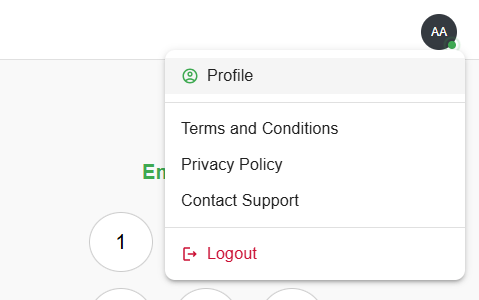
Navigate to Profile Management (Click the profile icon at the top-right corner and click profile from the dropdown). The profile menu appears in your navbar:
Click the Badge with your initials, Upload a profile picture and verify your display name.
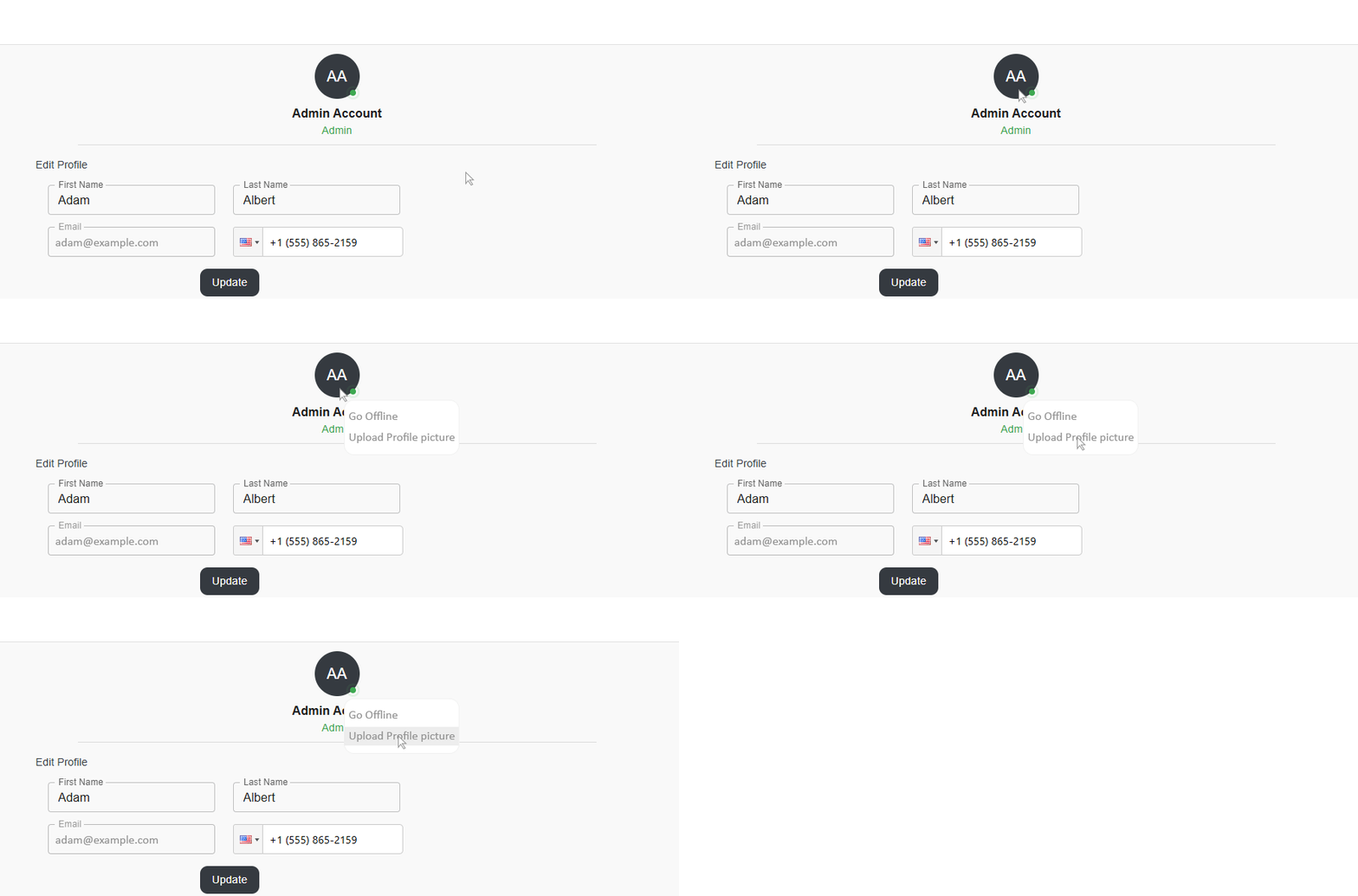
Set your Availability Status (Online, or Offline).
- Understand the Communication Hub The Communication Page is where the magic happens. Use the toggle at the top-right of the page to switch contexts:
Internal: Chat with your teammates and collaborate on projects.
External: Send SMS or make calls to clients using your business numbers.
To see the External tab or use the dialer, an administrator must assign you to at least one Queue.
- For Administrators: The First-Time Setup If you are setting up the organization for the first time, follow these three steps in order:
Step A: Acquire a Number Go to Channel Management > Buy Number. Choose a local or toll-free number. This becomes the face of your business.
Your Communication page's "External" screen will show a prompt to acquire a number and the actual screen will be hidden until you get at least one number.
Step B: Create a Queue Go to Queue Management and click Create New Queue.
Name your queue (e.g., "Sales" or "Support").
Assign Users: Add yourself and your team members to this queue.
Without this step, your team cannot receive or make external calls.
Step C: Build your IVR Navigate to the IVR Page. Use the drag-and-drop tool to connect your new Number to your new Queue.
Use the AI TTS (Text-to-Speech) tool to quickly type a greeting like "Thank you for calling Sales!" instead of uploading a professional recording immediately.
- Making Your First Call Once you are assigned to a queue and a number is active:
Go to the Communication Page.
Select External, if not selected by default.
Use the Dialpad to enter a number or select a contact from your Contact Management list.
Click the green Call button.